
Manual / Diversions
The register
- For
- a controller
- Status
- current
- Covers
- the Diversions tab's register — the status chips, the search and filters, the table, and a record's detail pane
- Last checked against the app
e6fb893(2026-11-23) — re-read against the code on 2026-11-23, not against a running app, plus the working tree of 2026-11-23 for the Signal look moving as Classic does, from the code, not yet seen on staging; the passages on records that apply to some patterns of a route written from the code on 2026-11-23, basea1414793, and not yet read against a running app
The register is the list half of the Diversions tab: every diversion this control room has planned, newest first, with what it costs and what state it is in. This page is what a record is, how it is named and found, and what its four states mean.
What you are looking at
The heading, and beside it a row of small chips naming what this deployment can do: Register, Planner, Spreadsheets, PDFs and Live overlays. A chip that is lit is available; a faded one is not, and hovering it says so — "Archival documents for issue to drivers — not available on this deployment". Hover Planner and the tooltip names the software that draws diversion paths rather than describing it:
A Valhalla routing engine for drawing diversion paths
Valhalla is the name of that piece of software; the part that concerns you is whether the chip is lit. Unlit, the app cannot draw a path along roads — see Planning a diversion.
The toolbar, in one row:
| Control | What it does |
|---|---|
| All · Draft · Approved · Active · Retired | Filter by state. Each carries the number of records in that state |
| The search box | "Search by route, reference, title or description…" — free text over those four things, including the route number |
| Operator | The same operator filter the rest of the app uses. It starts at whatever your own operator scope is set to, not at All operators |
| New diversion | Opens the planning workspace on a blank draft. Only with the Editor role. The keyboard shortcut is N |
| Export | Four downloads of the whole register: Register (JSON — canonical), Register (xlsx), Service-km lost (CSV) and Service-km lost (xlsx) |
| Compare | Pick 2–4 records and read them side by side |
| Reporting | Service-km lost by route and month — see Activations |
| No-go areas | The roads a bus may never be routed through — see Planning a diversion |
| Bulletin layout | How this depot's driver bulletins print — see The documents |
The table, on the left. One row per record: Ref, Route, Title, Status, Skipped, Stops, Updated, and a few quick actions. Click a row — or land on it with the arrow keys and press Enter — to open it in the detail pane on the right.
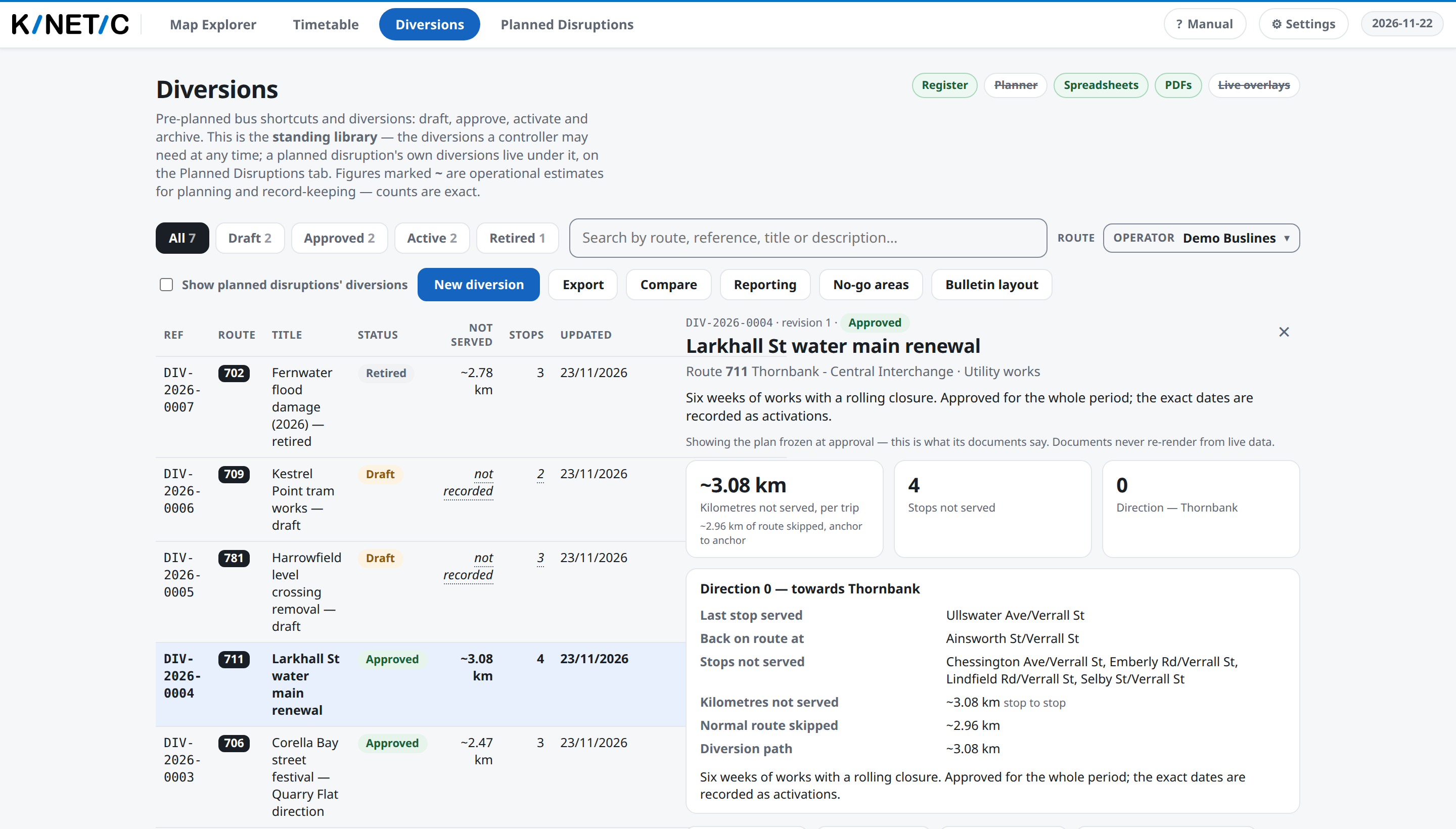
The quick actions on a row are shortcuts past opening it: Plan and Edit open the planning workspace and appear only on a draft; Dup drafts the opposite direction as its own record and appears on any record; Doc opens the issued document and appears on anything that is not a draft.
The detail pane, on the right, is one record from top to bottom: its reference, revision and state; its title, route and reason; any warnings; the three headline figures and the direction's own table; the lifecycle buttons; then five sections in this order — Planning map, Other patterns of this route, Driver instructions, Documents and History. The first four have their own pages in this section; History is described below.
While it is working
The register tries never to jump while you are reading it.
- The first time the register opens, the column headings appear straight away over grey bars where the rows will be, and the toolbar's space is kept for it. If the register cannot be opened, the message appears with no gap above it. On a quick connection you will not see the bars at all.
- Changing a filter or typing a search keeps the rows you were looking at and, if the answer takes more than a moment, pales them until the new rows arrive. They are not gone; they are about to be replaced.
- Opening a record shows its reference, state and title at once, with grey bars where the rest of the record will be.
- The same record, again — after you approve it or move it to another state, restore an earlier version, or save its bulletin — stays on screen, paler for a moment, and then updates in place. It no longer disappears and comes back. Saving from the planning workspace closes the workspace first, so the record then opens as above, with grey bars.
- A button you have pressed says what it is doing — Creating…, Moving…, Deleting…, Restoring…, Copying… — keeps its size, and cannot be pressed again until the answer is back and the record on screen shows it. A second press of Create draft no longer makes a second draft, and a second press of Save area no longer makes a second no-go area. If the change is refused, the button comes back with its own name so you can try again.
- Compare draws the columns, in their colours, as soon as you press it; the figures and the map fill in when every record has arrived.
- The Export menu, the compare bar, the retire form and an earlier version open with a small drop into place, and close at once. With Reduce motion on, they simply appear.
What a record is
One record is one route in one direction, and it holds:
- a reference —
DIV-2026-0007, numbered in order within the year. This is the handle to read out over the radio, and it is on every document the record produces; - a title, a reason and a description. The reason is picked from a short list — roadworks, event, incident, construction, emergency, other. The description is your own account of the diversion, and it prints on the bulletin;
- two anchors — where the bus leaves its normal route, and where it rejoins. Everything downstream is worked out from them;
- the drawn path between those two anchors, with any via points that steer it, and anything you drew on the plan by hand;
- the driver bulletin — the steps, their notes and their markers;
- its history — every version it has been through, kept whole.
It does not hold a route id. A record names its route the way a timetable does — the route number, its full name and its type — because the published feed re-issues its internal identifiers every time a new timetable is loaded. A record keyed on one of those would quietly come loose from its route at the next refresh, and the register is the one part of this app that cannot be rebuilt from anything else.
The same reasoning covers the anchors. Each one remembers the stop next to it and how far past that stop it sits, so when a newer timetable shifts the route slightly the anchor is re-projected from the stop rather than left behind. When it moves further than the app is willing to apply silently, the record says so instead — see Approval.
A record that applies to some trips only
A record made in a planned disruption can apply to some patterns of its route only: 305's peak runs into the city, but not its all-day buses. The list and the record say so: Applies to: The Pines SC/Reynolds Rd → King St/Lonsdale St (AM peak) only. The map draws that pattern's line, and the printed record carries the same line. A record without that line applies to every trip of its route, as every record always has.
When the timetable is updated, the record finds its patterns again. If a pattern has changed a little (a stop renumbered, say), the record says it was found again and asks you to check it. If it cannot be found with confidence, the record asks to be re-confirmed and cannot be approved until it is, just as when a START or END point has moved.
The four states
They run in one order — Draft, Approved, Active, Retired — and the chip on the record carries the same explanation you get by hovering it.
| State | What it means | Where it can go next |
|---|---|---|
| Draft | "Not approved — documents are watermarked and must not be issued" | Approved, or Retired |
| Approved | "Signed off and ready to activate; its plan is frozen" | Active; back to Draft for edits; Retired |
| Active | "In force now" | Retired; back to Approved — stood down, still valid |
| Retired | "Kept for the record; no longer in force" | Nowhere. It is the end of the line |
The buttons in the detail pane say Move to Approved, Move to Active and so on, and only the moves that are allowed are drawn. There is no way to jump from Draft to Active: that would skip the approval, and approval is the step that freezes what a driver's document says.
Delete draft exists only on a draft. Anything that has been approved can only be retired — "so the record of what was issued survives" — and retiring asks for a reason, which is worth writing: it is what this record will read as in a year, when somebody asks why the street was diverted and then was not.
What the numbers mean
Two figures per row, and the same two at the top of a record.
| On screen | What it is |
|---|---|
Skipped (~) |
The length of normal route one diverted trip does not run: the distance along the route between the two anchors. An estimate, derived from the published route shape |
| Stops | How many stops fall between the two anchors and are therefore not served. A count, exact for the plan as drawn — no ~ |
| Updated | When the record was last changed, in your local date format |
Open a record and the same pair is shown as Route skipped, per trip and Stops not served, beside the Direction and its headsign.
What they do not mean
A draft's figures are not a plan's figures. A draft has nothing frozen, so its numbers are what the plan resolves to right now and the row marks them as pending: hover one and it says "Pending approval — the current estimates, not a frozen plan. Approval freezes what its documents say." An approved record shows the frozen figures its documents actually state. Two records for the same street on the same day can therefore show different kilometres, correctly.
A dash in the Stops column does not mean no stops are missed. It means the route is not in the loaded timetable at all, so its stops cannot be counted — hovering it says exactly that. A diversion that genuinely misses nothing shows 0, and the app raises a warning on it as well, because a diversion serving every stop on its own section is usually a pair of anchors in the wrong place.
Skipped is per trip, not per day. It is the length of route one bus misses once. What a whole closure costs over a period is a different figure entirely — see Activations.
The chip counts are the whole register; the table may be shorter. The numbers on Draft, Approved and the rest come from the server and ignore your search and operator filter. When the filter narrows the table, a line above it says "Showing 12 of 40 diversions".
The table stops at 200 rows. Past that it says so — "Showing the first 200 diversions. Filter by status, route or text to reach the rest." — and names how many the register holds. A record you cannot see is not a record that was deleted.
Search is text, not intelligence. It matches the letters you typed against the title, the reference, the description and the route number. It does not know street names unless you typed them into one of those fields, and it does not search the bulletin.
A record whose route has left the timetable still appears, and it passes the operator filter rather than being hidden by it — that record is precisely the one that needs attention.
Nothing in this tab is coloured by a delay band, a headway band or a road severity band. The status chip is a lifecycle state and nothing else.
History, and going back to an earlier version
Every record carries a History list: one entry per event, newest first, each naming what happened (Created, Edited, Draft → Approved, Restored an earlier version), who did it, when, which revision it produced, and a one-line "Changed title, anchors." summary of what actually differed.
People are shown by their name today. Each entry names the person's current display name, so someone who changed their name is one person all the way down the list, not two. Only when that person has really been renamed does the name they went by at the time follow it — "Sam Lee (then: slee)" — because the history is a record of what happened. An account that has since been deleted still shows its last name, followed by (deleted). An entry made with sign-in off, or one that came in from another deployment's file, shows the name it was recorded under and nothing more: the app has no account to look it up in.
Open an entry to read the record as it stood then — route, reason, where it left and rejoined, how many via points, whether instructions had been written, and the frozen estimate if it had one. On a draft, that view also offers Restore this version onto the draft.
Restoring does not rewind. It brings the old plan back as a new revision and adds the restore to the history: the record keeps its reference, its state and everything that has happened to it. On anything past draft the option is replaced by a line telling you to send the record back to Draft first.
Comparing records
Compare turns the table into a picking list. Choose between two and four records, press Compare, and they are laid out in columns — title, route, direction, route skipped, stops not served — over one map that draws each diversion's skipped section in its column's colour.
Each column shows its frozen plan where it has one and its live resolution otherwise, and a draft is badged live so the two are never confused. It is the same choice the detail pane makes, for the same reason.
When it looks wrong
The tab is there but the register will not load. The panel says why. "Sign in to view the diversion register." is a session that has ended. Anything else is the server's own message, and it is more specific than this page can be.
The pane says the record does not resolve. A record whose route or direction has left the loaded timetable opens with a warning rather than an error, because a diversion that cannot be resolved is exactly the one you need to be told about. See Approval.
The tab is padlocked or missing. That is not about this record — see A tab is padlocked or missing.