
Manual / MAP
Finding a route
- For
- a controller
- Status
- current
- Covers
- the Map Explorer's Routes list, the Operator filter and the Route panel
- Last checked against the app
09f9688(2026-11-18) — the Route panel table, Patterns: one number, several ways of running and the notes that follow it were rewritten for route patterns on 2026-11-23, read against the code and not yet against a running app; to be re-checked on staging
Most of what this tab can tell you starts with a route selected. This page is how you get one on screen, how you narrow it to one direction and one pattern, and what the panel beside it is saying.
What you are looking at
The sidebar opens on Routes. The other half of the pair is Stops, and it has its own page.
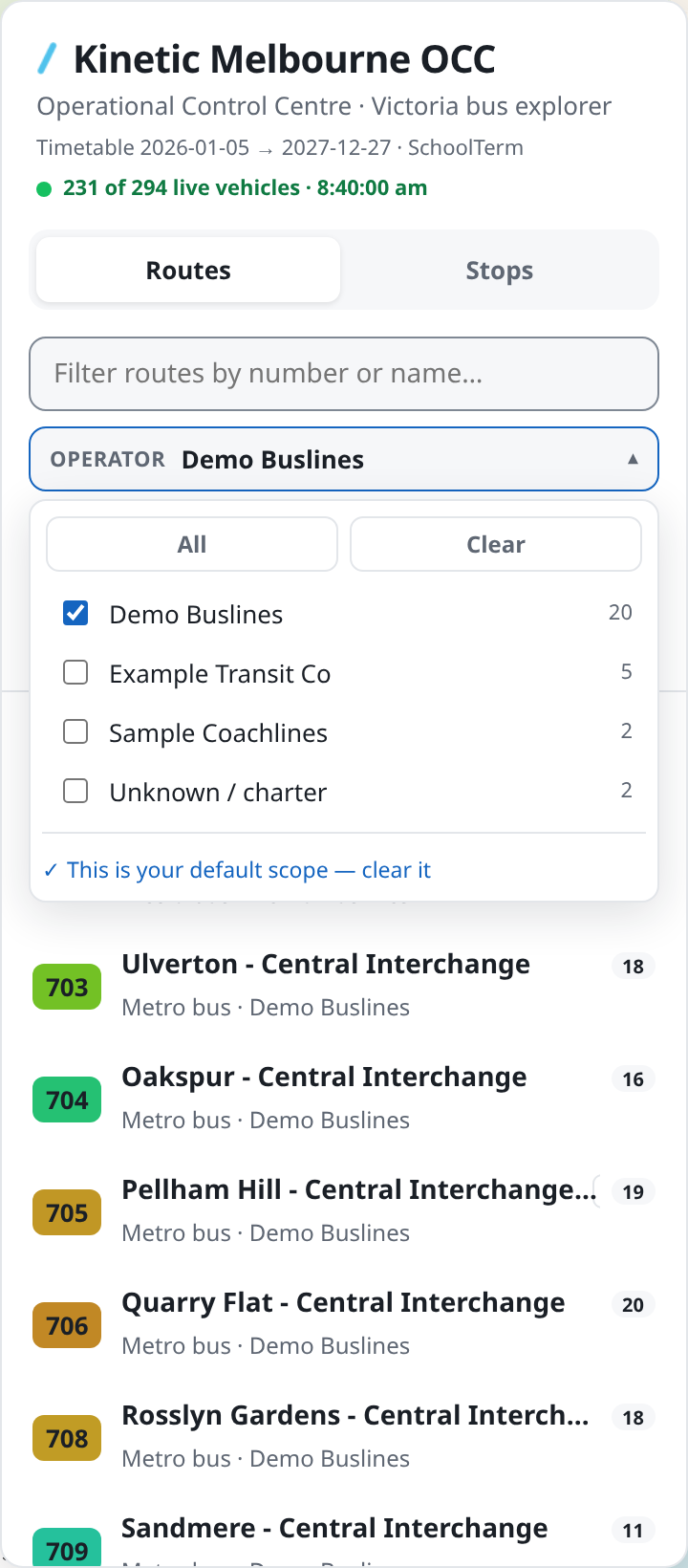
- Filter routes by number or name… — the box at the top. It matches the
number and the name, so
246andElsternwickboth work. - Operator — who runs the route. Closed, it reads All operators, or the one operator's name, or 3 operators. Open it and there is a checkbox per operator with the number of routes each has, an All and a Clear button, and at the foot a link that pins whatever you have picked.
- A count under the filters — 484 routes — of what is in the list right now.
- Any views you have saved, as named links. See Saved views.
- The route list itself. Walk it with the arrow keys.
Each row carries the route number on a badge in that route's own colour, the route's full name, a 3 patterns tag where it has more than one pattern, and underneath: Metro bus or Regional bus, and who operates it.
Clicking a route selects it. Clicking the selected route again clears it.
While the app is first starting, the list shows a few grey bars in the shape of route rows, with Loading routes… above them, so the sidebar keeps its shape until the real list arrives. On a quick connection you will not see them at all: they only appear if the wait lasts longer than about a third of a second. If the list cannot be fetched, the bars are replaced by The route list could not be loaded, and a red notice at the top of the screen offers Try again.
The list can arrive a moment before the rest of the map has finished starting — the stops take longest. Until the map is ready the list can be read but not clicked, so a route you pick is never swapped a second later for the view the app was opening on. On a slow connection, give it a moment and click again.
The Routes / Stops switch at the top of the sidebar slides its highlight across to the one you pick, in the standard look. In the Signal look it is part of the left-hand rail and is marked by its edge instead.
The same box also finds a bus
Type at least two characters of a fleet number or a plate and any live bus matching it appears in a group above the routes — 2 live buses matching "8071". Clicking one opens its Bus panel and moves the map to it. A bus that is not out right now simply has no match, which is itself the answer. See Following one bus.
What selecting a route does
Four things at once, and they are worth knowing separately because they come apart later:
- the route's line and its stop dots are drawn, at any zoom;
- the camera is framed on the route;
- the live buses are narrowed to that route, split by direction;
- the Route panel opens in the dock on the right.
The panel opens straight away, with the new route's badge, name and operator at the top, before its details have arrived. Until they do, the rest of the panel says plainly that it is not the new route's yet: if another route was already showing, its details stay where they are but fade back and stop responding to clicks; if nothing was showing, grey placeholder bars stand in for them. Either way you only see it on a slow connection — the change waits about a third of a second before it shows.
Two other surfaces follow the selection: the Headway overlay's scope becomes that route and direction, and — while the Incidents overlay is on — closures sitting on that route are marked. The Traffic, Incidents and Clearance overlays otherwise keep showing everything in view; they are about the road, not about your route.
The Route panel
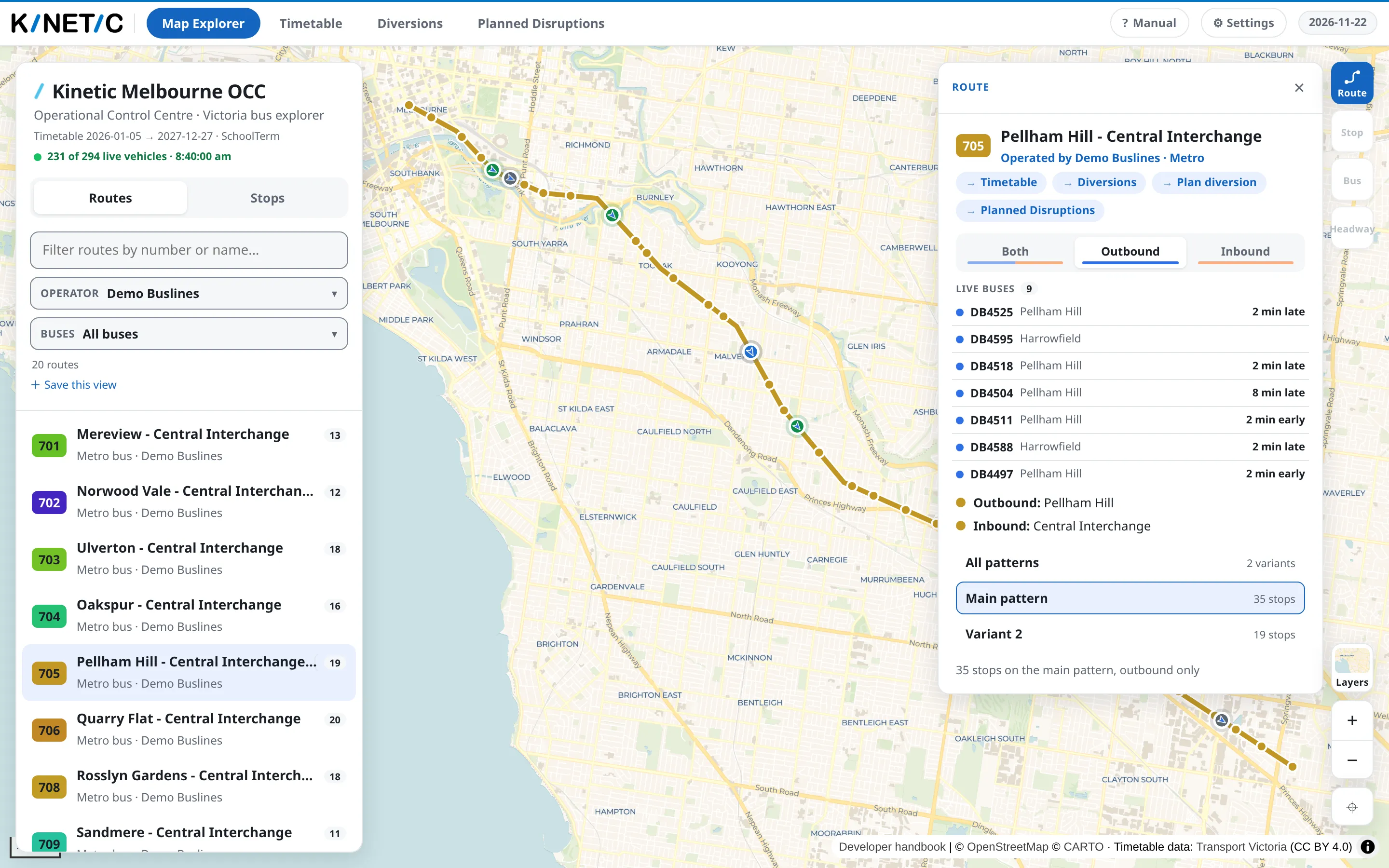
| On screen | What it is |
|---|---|
| The badge and the name | The route number and its full name |
| Operated by … | Who runs it, and the region for a regional route. Absent where the app has no operator recorded |
| A warning line | Present only where the published timetable's shape for this route cannot be trusted. Read it before measuring anything off the line |
| Timetable · Diversions · Plan diversion | The same route, one click away in another tab. Only the ones this deployment has, and only the ones your account may open |
| Both · Outbound · Inbound | Which direction is drawn. Each button carries the colour that direction's buses are drawn in, so the control and the map agree |
| Live buses | The buses out on this route right now, in order along it, each with how late it is running |
| Outbound: … / Inbound: … | The destination shown on the front of the bus in each direction |
| All patterns, then the patterns under Main pattern, Other roads and Short working | Every way this route runs, each named by its first and last stop, with when it runs, how many trips and how many stops |
| … stops served by some trips only | A folded list of the stops in view that not every bus calls at, each with when it is served. Absent when there are none |
| The line at the foot | 62 stops on all patterns · 4 served by some trips only — what the current selection adds up to |
Patterns: one number, several ways of running
A route number is often several patterns: the all-day run, the peak run that goes on into the city, the short working that turns back early, the express, the one that goes into the depot at the end of the day. A pattern is one sequence of stops, in one direction. The panel lists every one of them.
All patterns comes first, and it is what you see when you pick a route: the route's main line, plus every pattern that runs on roads the main line does not. Routes 305 and 908, for example, run into the city along King St and Lonsdale St in the morning and evening peaks; that running is drawn as a second, thinner line beside the main one.
Under it the patterns are grouped:
- Main pattern — the one most buses run, in each direction. It is the line drawn heaviest.
- Other roads — patterns that leave the main line and cover road it does not. These are drawn by default, as the thinner line.
- Short working — patterns that stay on the main road: a run that starts or finishes part-way, an express that skips stops, a depot run. Their line sits on top of the main one, so they are not drawn until you pick one.
Each row is named by the pattern's first and last stop, and says when it runs — PM peak · weekdays 15:25–18:56 · 90 trips · 48 stops. The times are the first and last departures from the pattern's first stop, in your clock setting. AM peak and PM peak mean every one of those departures falls in the morning or the afternoon peak; all day means it runs morning, middle of the day and evening.
Pick a row and the map draws that pattern alone, at full weight, with only its stops. Pick All patterns to go back. A pattern runs one way, so when a direction is selected only that direction's patterns are listed, and switching direction away from the pattern you picked goes back to All patterns.
A pattern is not a variant. The published timetable sometimes carries the same route twice under two internal numbers. The app used to list those as Main pattern and Variant 1, which were the same line twice. They are now one pattern, and a link saved before the change, which opens on one of them, opens on the main pattern.
Stops served by some trips only
A stop that the main pattern does not call at is served by some trips only. On the map it is drawn hollow — white inside, with a dark ring — where an every-trip stop is a solid dot in the route's colour. Hover over it and the tooltip says when it is served, for example AM peak only · weekdays · 130 of 748 trips: which part of the day, which days, and how many of the route's trips in that direction call there.
The same stops are listed under the patterns, folded, as N stops served by some trips only. Open the list to see each one with when it is served; click a stop to open its departure board.
What they do not mean
The route count is not the size of the network. It counts what matches the filter box and the Operator filter as they stand. If someone set an operator scope for you, or you set one last week, the count is of that scope.
Clear and All are not the same button twice. Clear unticks everything, and no ticks at all is how the app says no operator filter — every route, every bus. All ticks every box, which looks the same in the route list but is an explicit choice: the live line under the sidebar heading then reads N of M live vehicles, and the two numbers can differ, because a bus on a route the app has no operator recorded for is only included when Unknown / charter is ticked too.
A blank operator is not "no operator". The published timetable does not say who runs a route; the app carries a separate list beside it, and a route missing from that list shows no operator line at all. It means nobody has recorded it, not that nobody runs it. Routes in that state are gathered in the Operator filter under Unknown / charter.
The line on the map is the published shape, not a survey. Where the app can see that a shape is not usable — it leaves the corridor of its own stops — the panel says so in as many words and tells you the distances are approximate. The line is still drawn, because a planner who searches for a route and finds nothing is worse off than one shown a line with a warning on it. Where the warning is absent, the shape passed the app's checks; it has still not been driven.
The stop count follows your selection. 62 stops on all patterns counts distinct stops across every pattern and both directions. Narrow to one pattern and one direction and the number changes, because the question changed.
A hollow stop is not a closed stop. It means not every trip calls there — nothing about today, and nothing about a disruption. AM peak only is the pattern's timetable, not a promise about the next bus: check the departure board for when a bus will actually come.
A short working that is not drawn is still there. All patterns leaves short workings off the map because their line would only sit on top of the main one. Their stops are still drawn, and picking one draws its line.
Grouping is by road, not by importance. Other roads means a pattern covers road the main line does not, by more than a hundred metres or so. It says nothing about how many buses run it.
Nothing here is about today. The route, its patterns and its stops come from the loaded timetable, which covers a range of dates shown under the sidebar heading. What is running today is the departure board's business, and what is running now is the live buses'.
When it looks wrong
The list is empty. It says which of the two reasons it is: No routes match "…" if the filter box is the cause, and No routes for the operators you have picked if the Operator filter is. Open Operator and press All.
The panel says This route's details could not be loaded. The request for that route failed. The header still names the route you picked; click it again in the list to try once more.
There is no direction toggle. The route runs one way in the loaded timetable, so there is nothing to toggle between. The app draws no control whose only effect is to re-select what is already selected.
There is no pattern list. The route has one pattern.
It says No mapped stops for this selection. The pattern and direction you have combined have no stops in the loaded timetable. Go back to All patterns or Both.
The panel lists Main pattern and Variant 1 instead of patterns grouped by road. The timetable on the server was loaded before the app learned to read patterns, and the panel is showing the older list, in which the same line can appear twice and peak runs into the city are not shown. It changes by itself once the timetable is next loaded.
A pattern's row says no usable line in the feed. The published timetable's shape for that pattern failed the app's checks, so it is listed with its stops but no line is drawn for it.
The route is drawn and there are no buses on it. That is a live-feed question, not a route question — see Live buses and what the colours mean.